The Assistants dashboard (/app/assistants) lists every scripted bot in the workspace. Filter by All, Live, Draft, or Paused; sort by recently updated, name, sessions, or node count; switch between grid, chart, and list views. Counts and cards are always loaded from your workspace — nothing is pre-seeded.
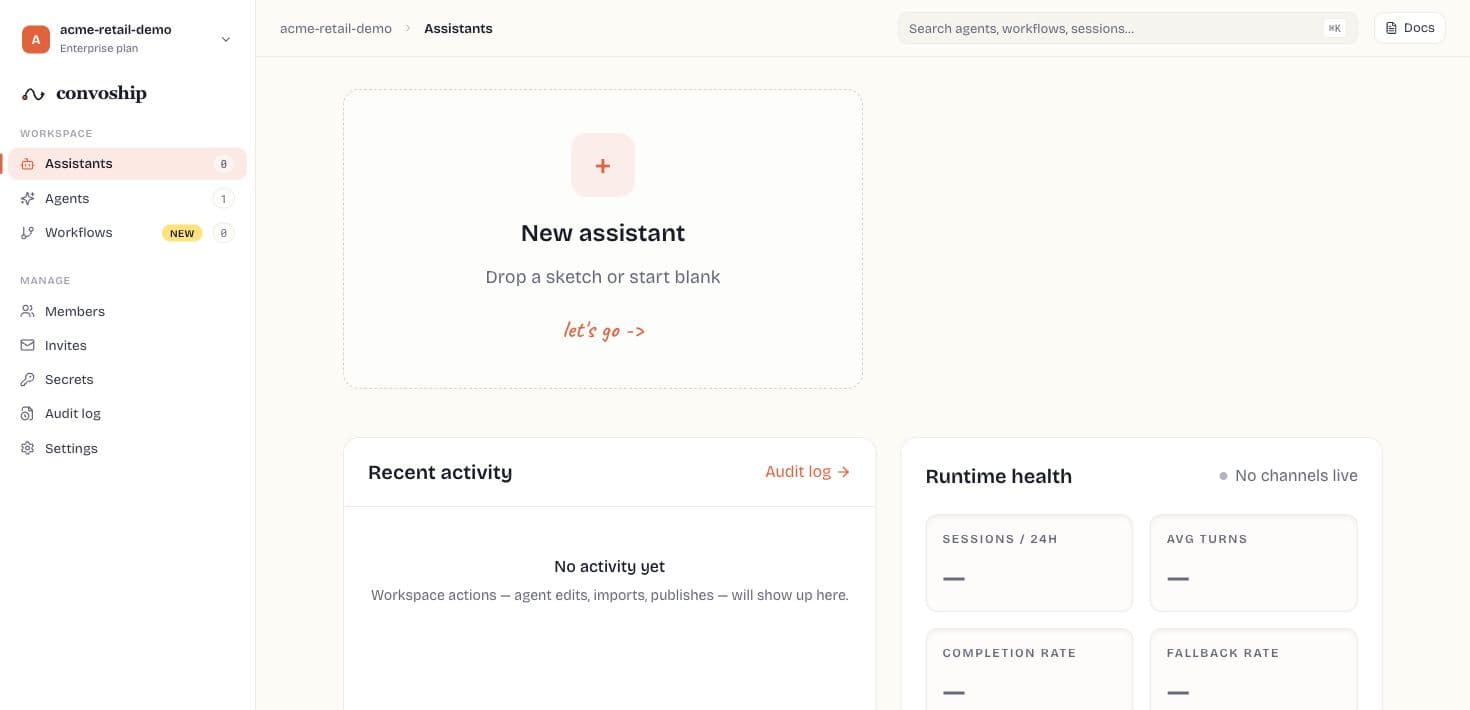
Page header
- Live usage line — agents · drafts · conversations (30d) from GET /v1/workspaces/usage.
- Sketch → bot card — opens /app/assistants/new wizard.
- Runtime health sparkline — sum of assistant daily_sessions[] across workspace (zeros when empty).
Creating an assistant
- Start blank — empty assistant with a placeholder intent.
- Import — Draw.io, PDF, Word, or image via the 3-step wizard (see New assistant wizard).
- Re-open /app/assistants/new anytime from the dashed card.
Implementation order
- Create or import the Assistant, then rename it to the customer-facing job it owns.
- Build intents first, because each intent owns the sub-flow users will actually run.
- Add entities and tools only after the happy path is readable on the canvas.
- Use Test & simulator before Channels so runtime issues are caught while the bot is still private.
- Publish only after import review, validation blockers, and origin allowlists are clean.
Assistant editor rail
| Section | Tabs |
|---|---|
| Build | Flow, Intents, Entities, Tools, Small talk, Events, Knowledge, Python |
| Operate | Test, Channels, History, Change log, Analytics |
| Move | Import, Export, Versions, Publish |
| Settings | Agent name, locale, timeouts, delete |
The floating simulator (bottom-right) is available on every Assistant tab for quick testing.